


Key Features
Everything your warehouse team needs — built into a single Odoo module.
Inventory Planner
Plan and organize inventory counting operations with configurable users, approvers, warehouses, and locations. Set automatic scheduling using frequency and next execution dates.
Count Sessions
Create inventory counting sessions for users to perform counting tasks efficiently. Support Multi-session inventory counting workflows.
Barcode Counting
Perform fast inventory counting using barcode scanning for locations, products, and lot or serial numbers. Auto-detect product tracking type during scanning.
Multi-user Support
Assign specific users and approvers for inventory count operations to ensure accountability and control. Dedicated roles for Inventory Counter and Inventory Manager.
Session Assignment
Automatically generate inventory count records based on planner configuration or run inventory creation manually. Track progress with scanning statistics and session duration.
Review Workflow
Approve or reject counted lines with optional rejection reasons for better audit tracking. Complete sessions only after all products are properly reviewed and approved.
Inventory Adjustment
Generate inventory adjustments automatically for quantity differences found during counting. Update stock quantities in the system after validating inventory adjustments.
Reports
Generate Inventory Adjustment Reports and Count Summary Reports showing theoretical vs counted quantities and differences for analysis and audit history.
Email Notifications
Automatically notify relevant users when count sessions are assigned or completed. Configurable email templates keep teams informed throughout the counting process.
Access Rights
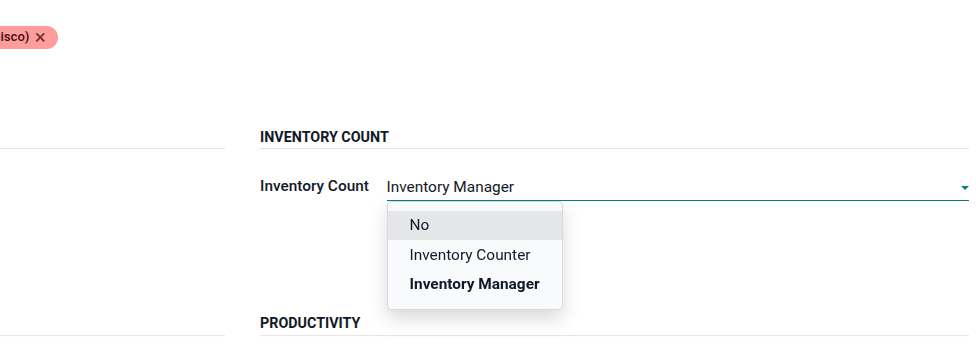
Manage access control with dedicated roles — Inventory Counter and Inventory Manager — for better operational security and role-based counting control.
User Access Rights
Configure two different user roles with specific permissions and access for the inventory counting operations.
- Inventory Counter: Can view and execute assigned counting sessions with barcode scanning to perform physical inventory counts.
- Inventory Manager: Full access to create inventory counts, manage sessions, review, approve or reject counted lines, apply inventory adjustments, and access reports.
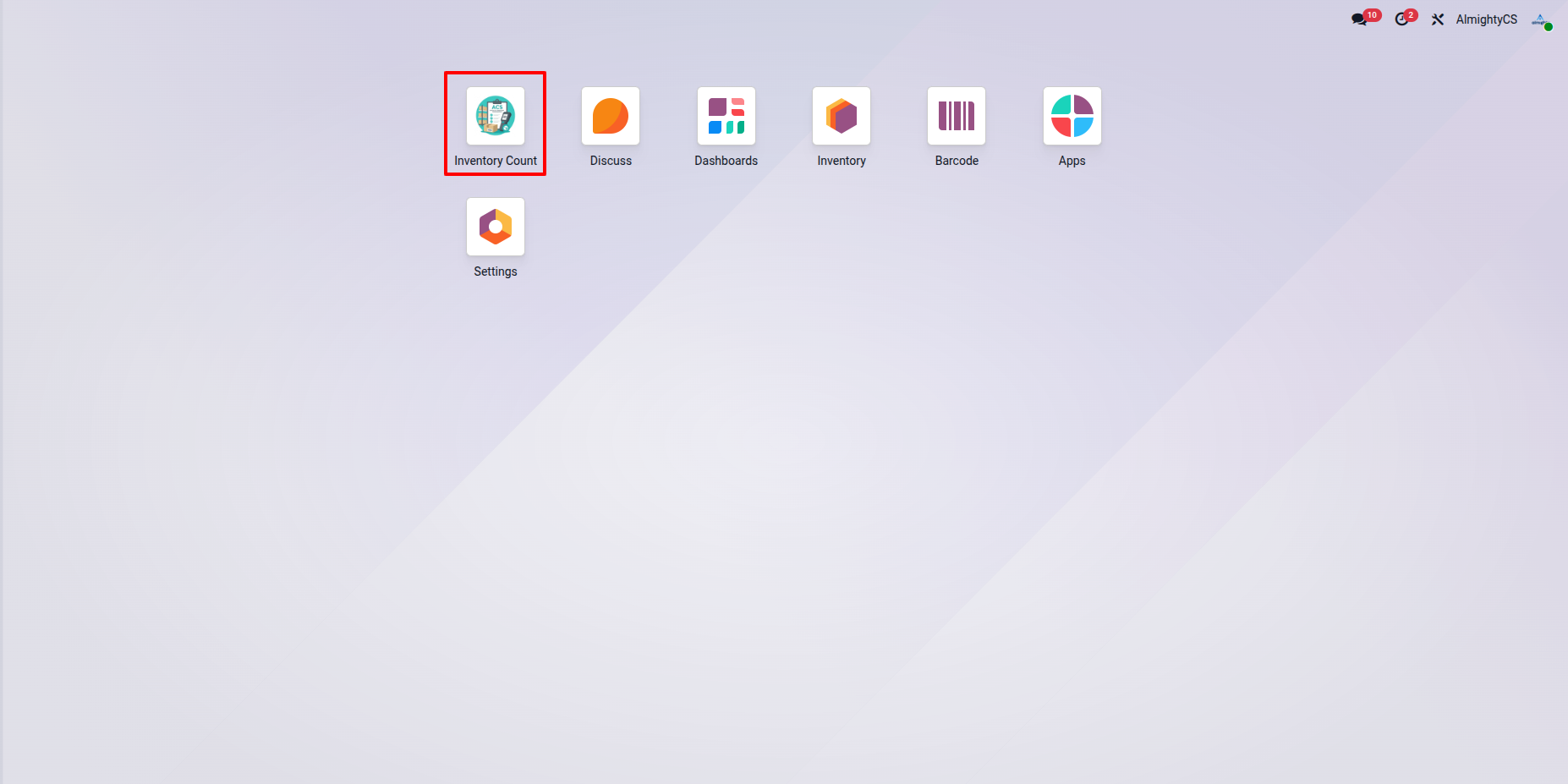
Inventory Count Menu
Access all inventory counting operations from a centralized menu. Navigate between planners, sessions, adjustments, reports, and configuration screens.
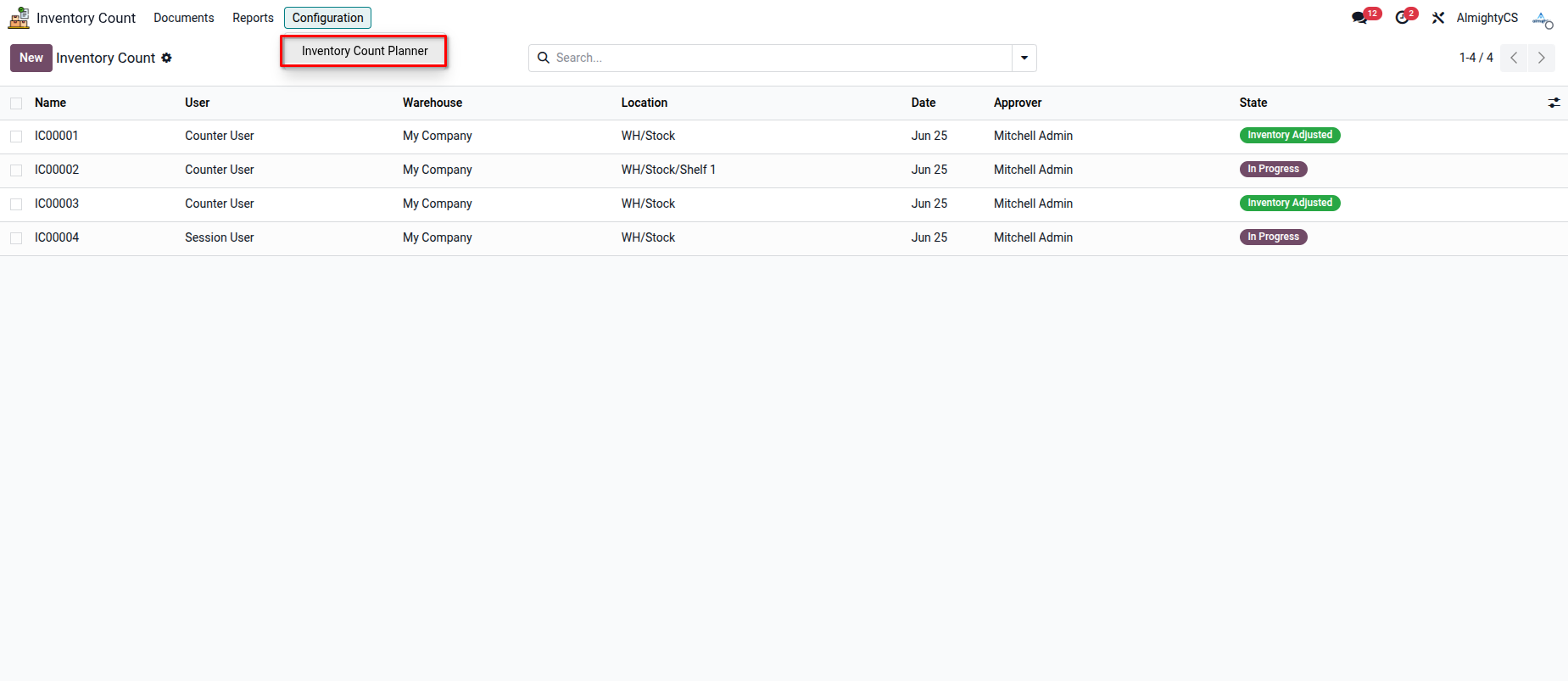
Inventory Count Planning
Plan and schedule inventory counts by creating planners, configuring locations and products, then generating count records and assigning sessions to warehouse users.
Inventory Count Planner
The starting point for all inventory counting. Organize counts by warehouse, location, product, and strategy before generating records.
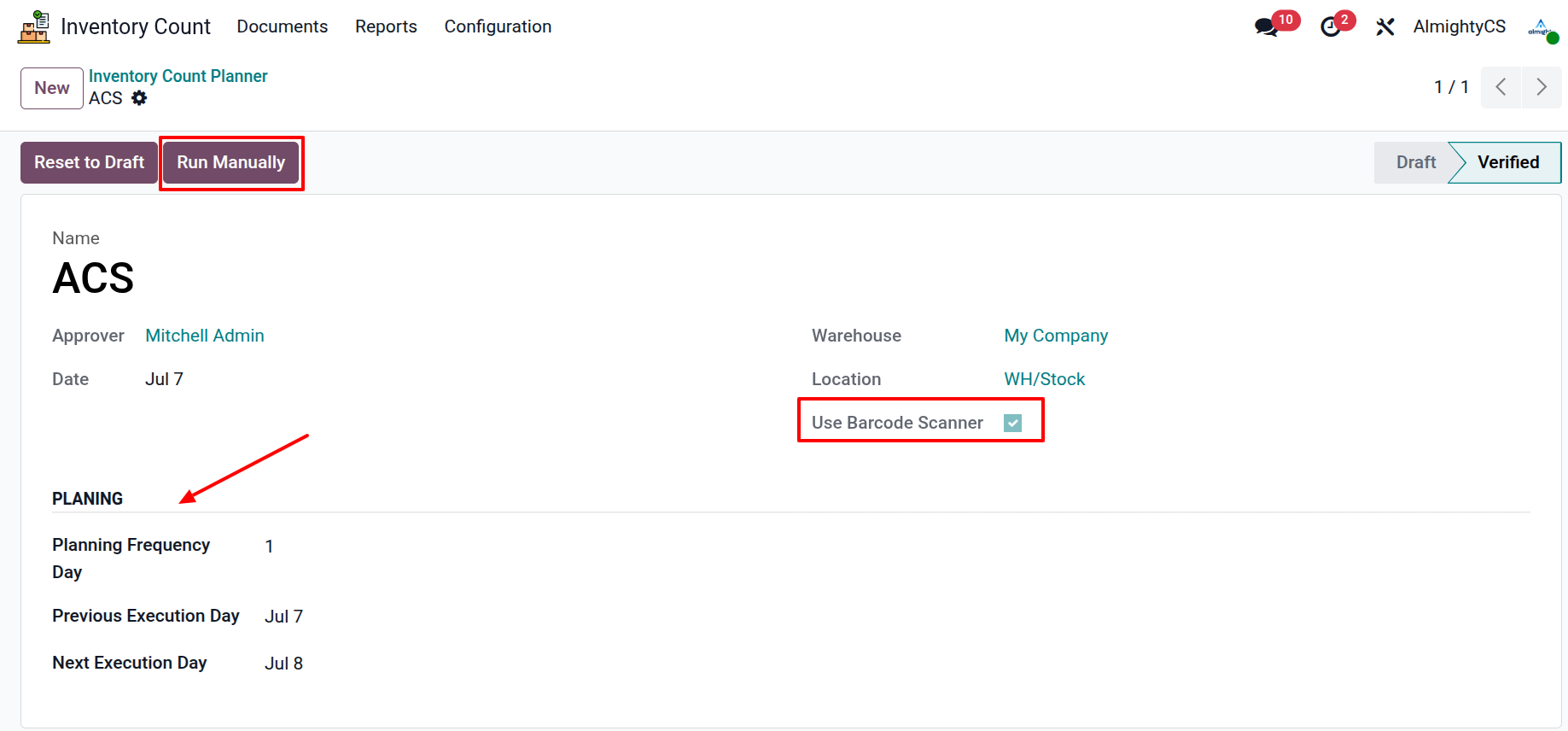
Configure Inventory Planner
The planner form allows you to configure the entire counting plan:
- Warehouse Selection — Choose the warehouse where the inventory count will take place.
- Location Selection — Select specific storage locations or count all locations within the warehouse.
- Barcode Scanner Selection — Enable barcode scanning support for faster and more accurate counting.
- Planning Phase — Set the planning frequency (Daily, Weekly, Monthly) and next execution date for automatic scheduling.
- Run Manually Button — Instantly generate inventory count records on demand without waiting for the scheduled cron job.
Generate Inventory Count
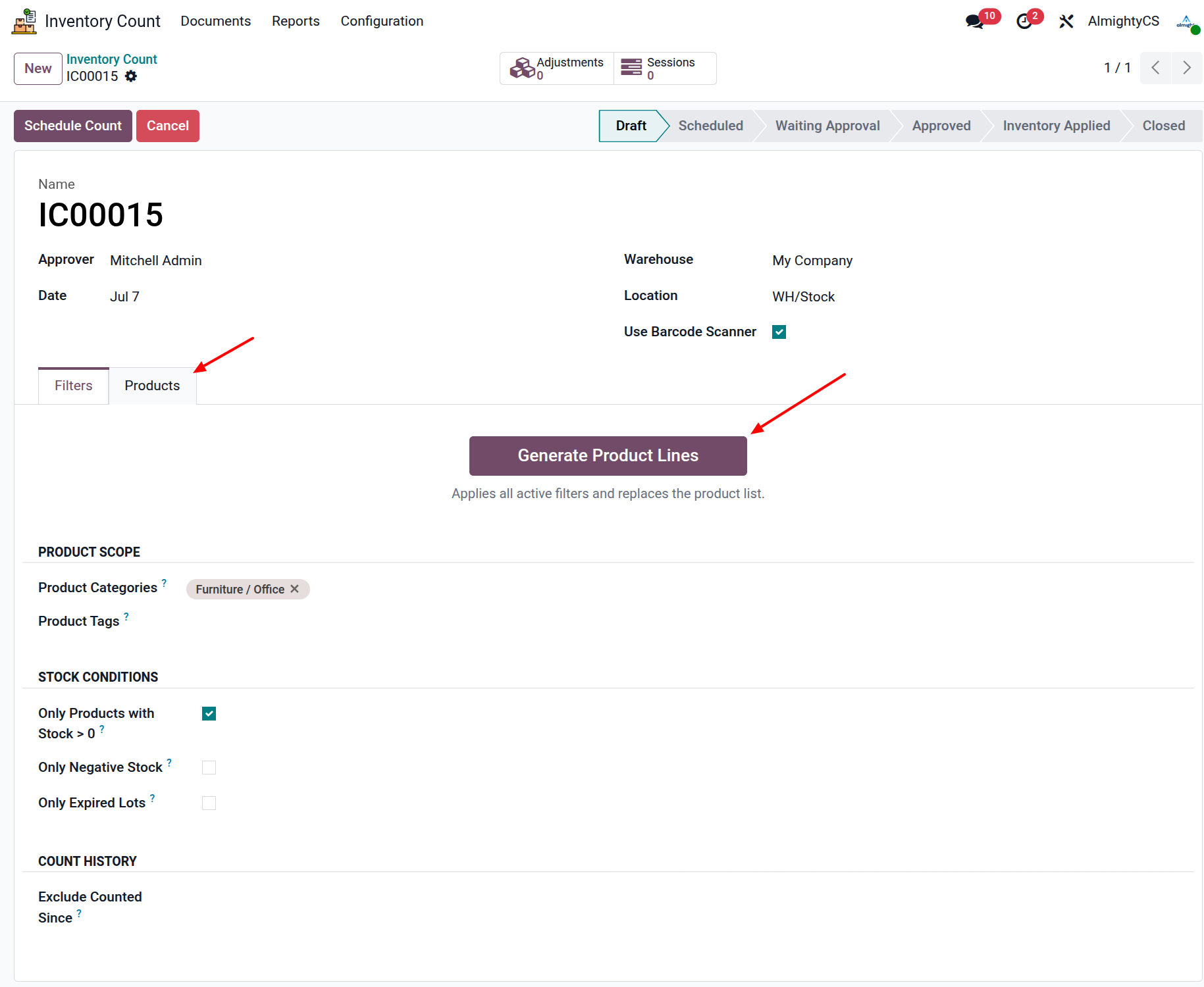
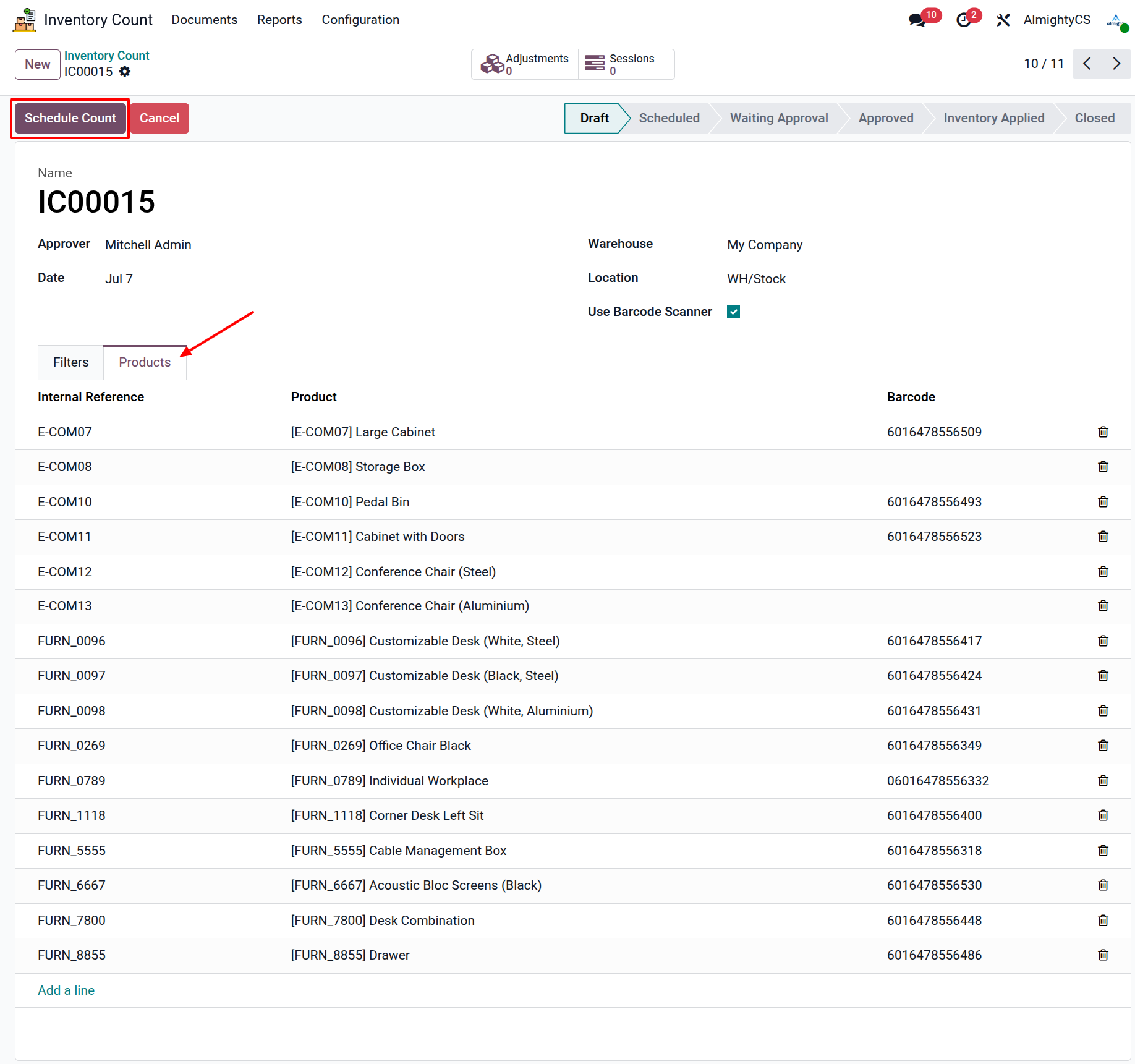
After planner configuration, generate an Inventory Count record that serves as the parent document for all counting sessions. It contains different filters, through filtering user can generate list of their desired products,just by clicking on Generate Product Lines and user can enable Use Barcode Scanner for using the scanning devices.
Scheduling Count Sessions
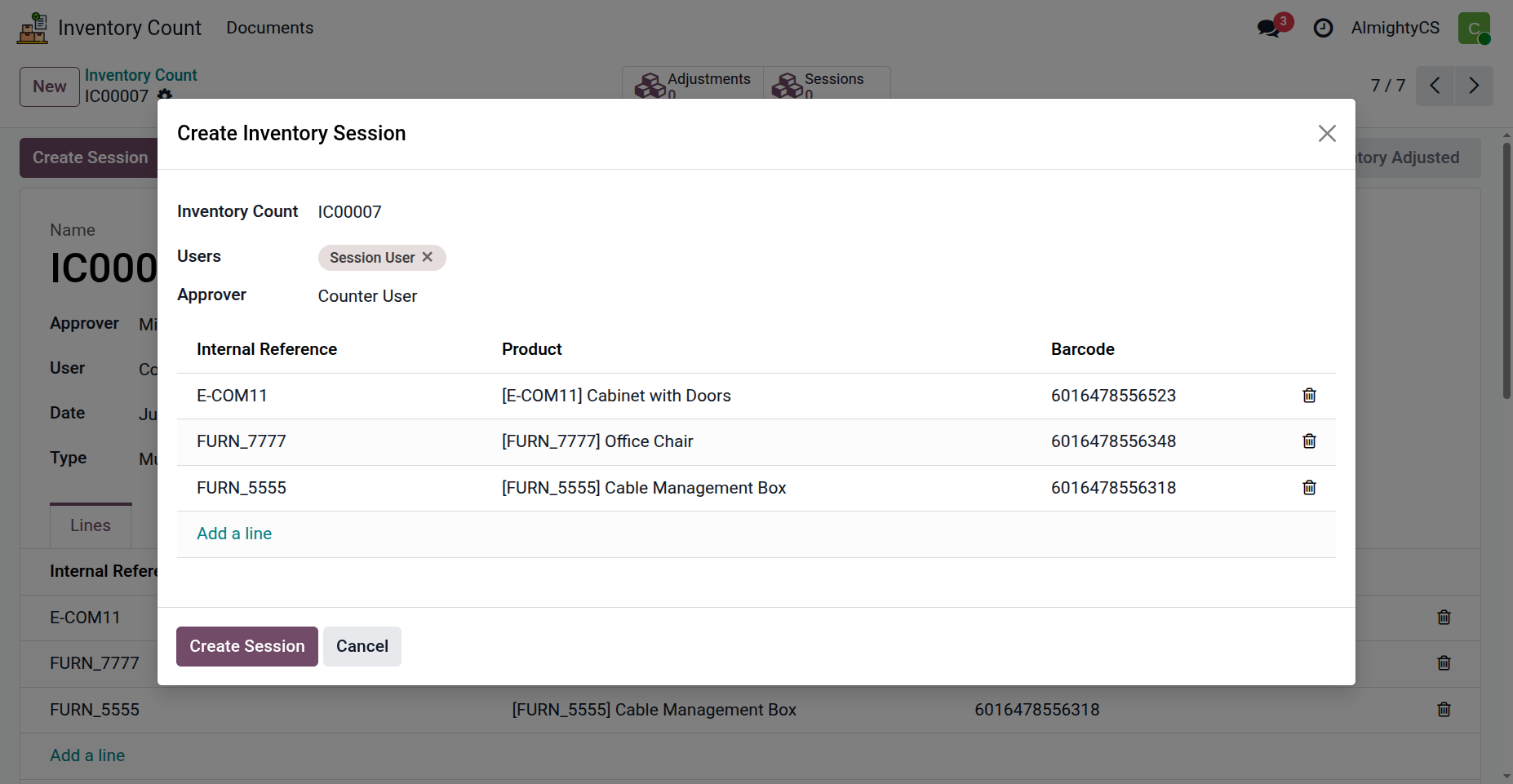
Divide count records into multiple sessions assigned to different users, enabling simultaneous counting with full visibility over each session.
Inventory Counting Workflow
Warehouse users perform physical inventory verification using assigned sessions with barcode support, real-time progress tracking, and manager oversight.
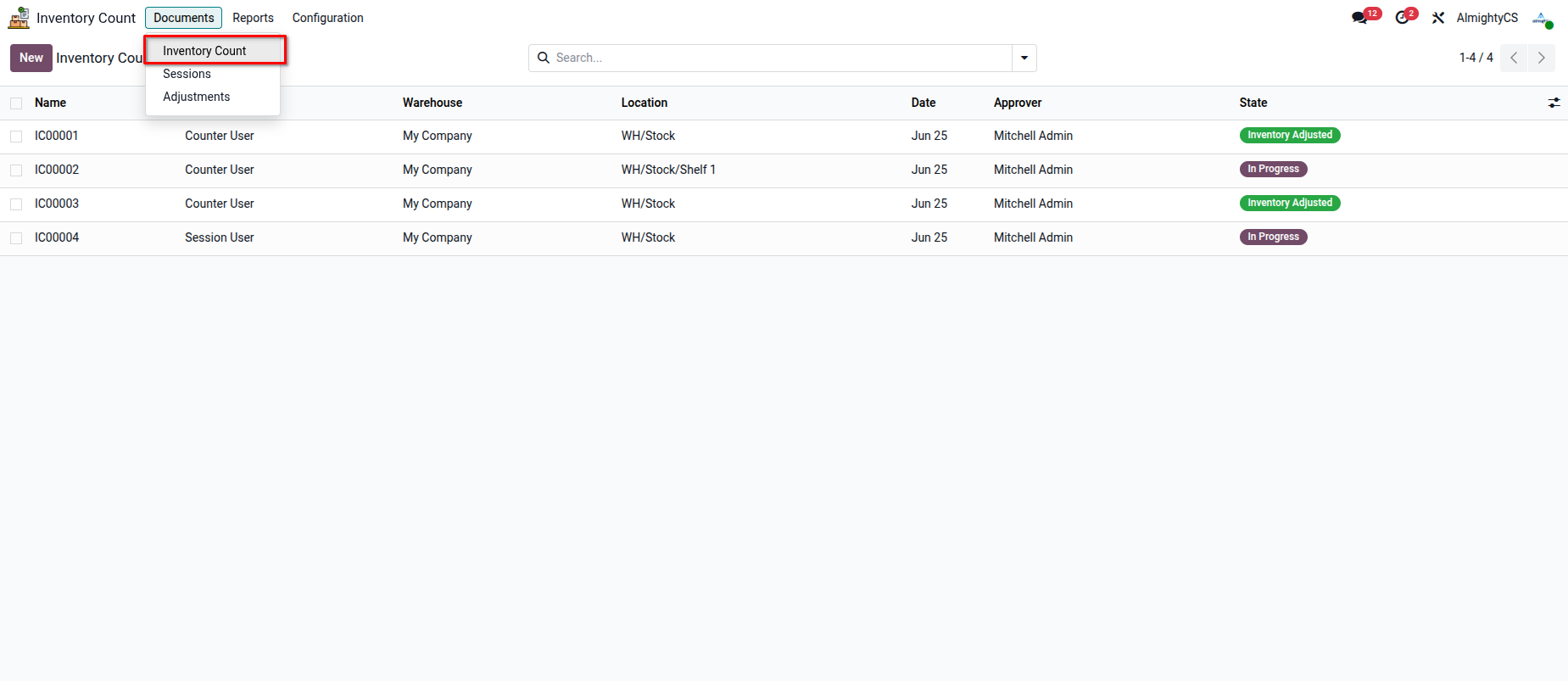
Inventory Count Sessions
Each session contains a dedicated product list assigned to a user. Managers monitor progress, completion, and remaining items in real time.
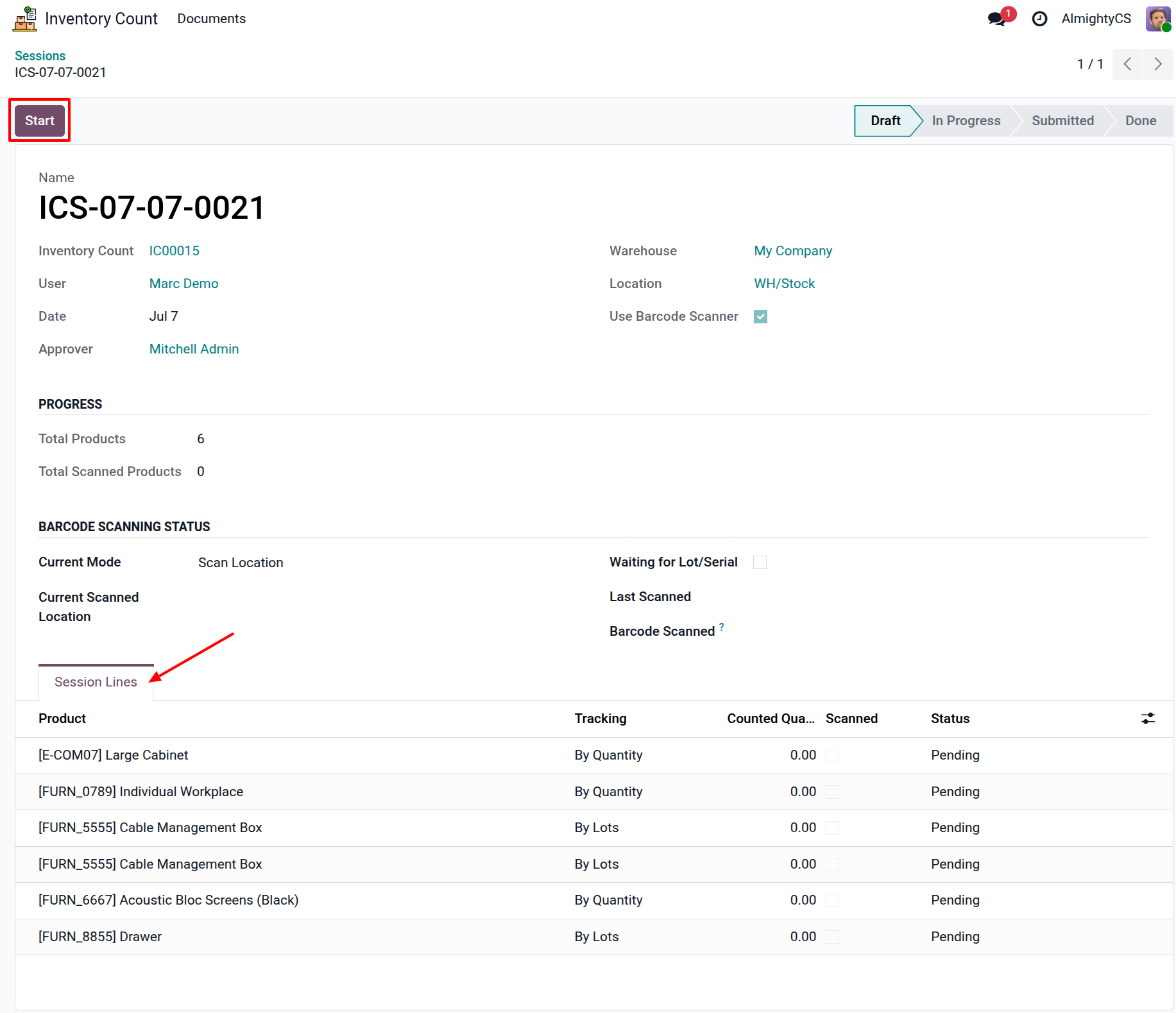
Start Inventory Session
Users start their assigned session when ready. The system records the status and prepares inventory lines for verification.
Barcode Based Counting
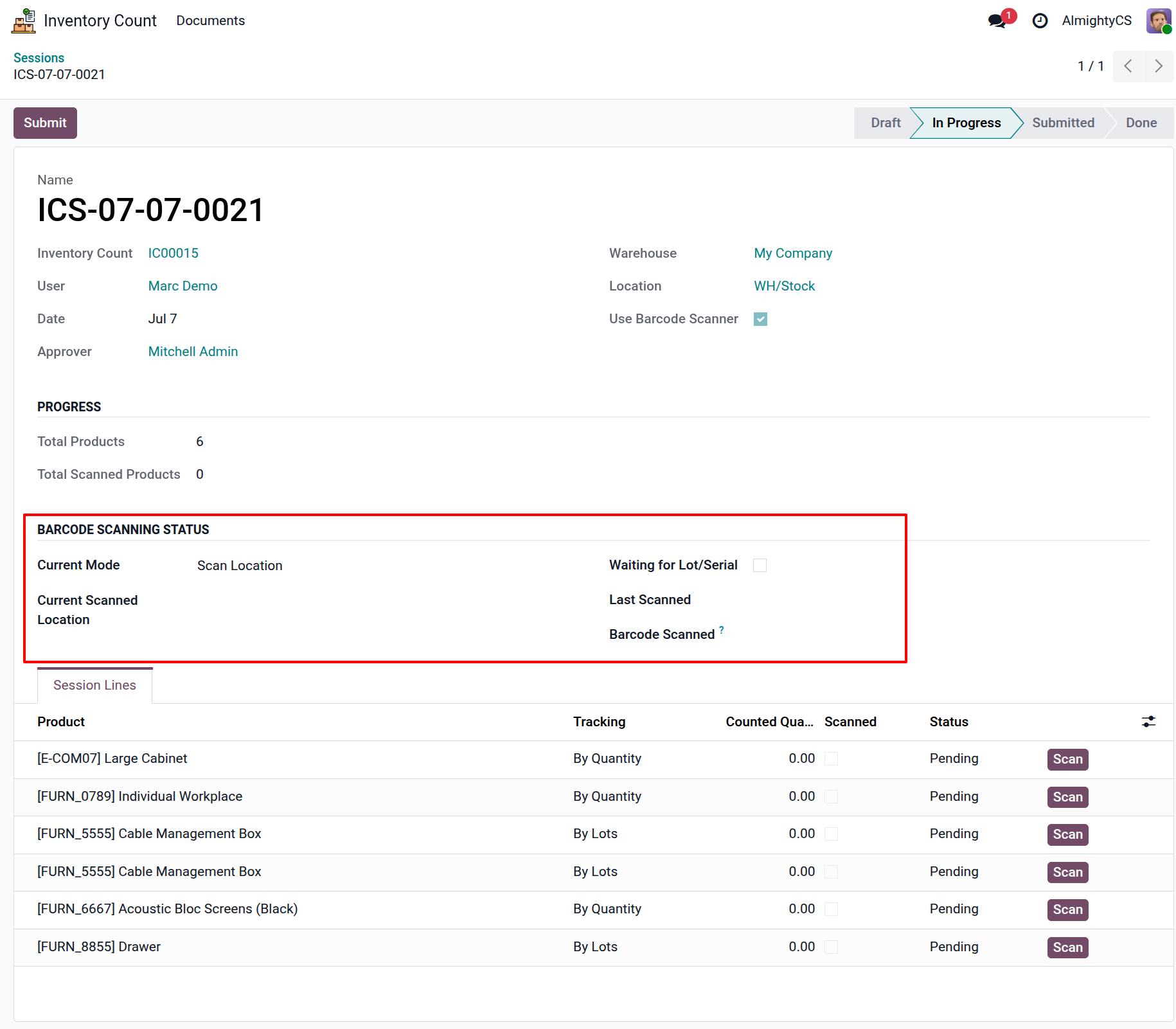
The Session Timer will start and the Barcode Scanning Status values will be added if the user has configured Use Barcode Scanner. User can then start scanning in this flow:
- Scan Location — First, scan the barcode of the storage location to identify where the count is taking place.
- Scan Product — Next, scan the product barcode. The system automatically identifies the product and loads it into the count line.
- Serial / Lot Numbers — For tracked products, scan the serial number or lot number individually. Each scanned serial/lot is recorded separately for full traceability.
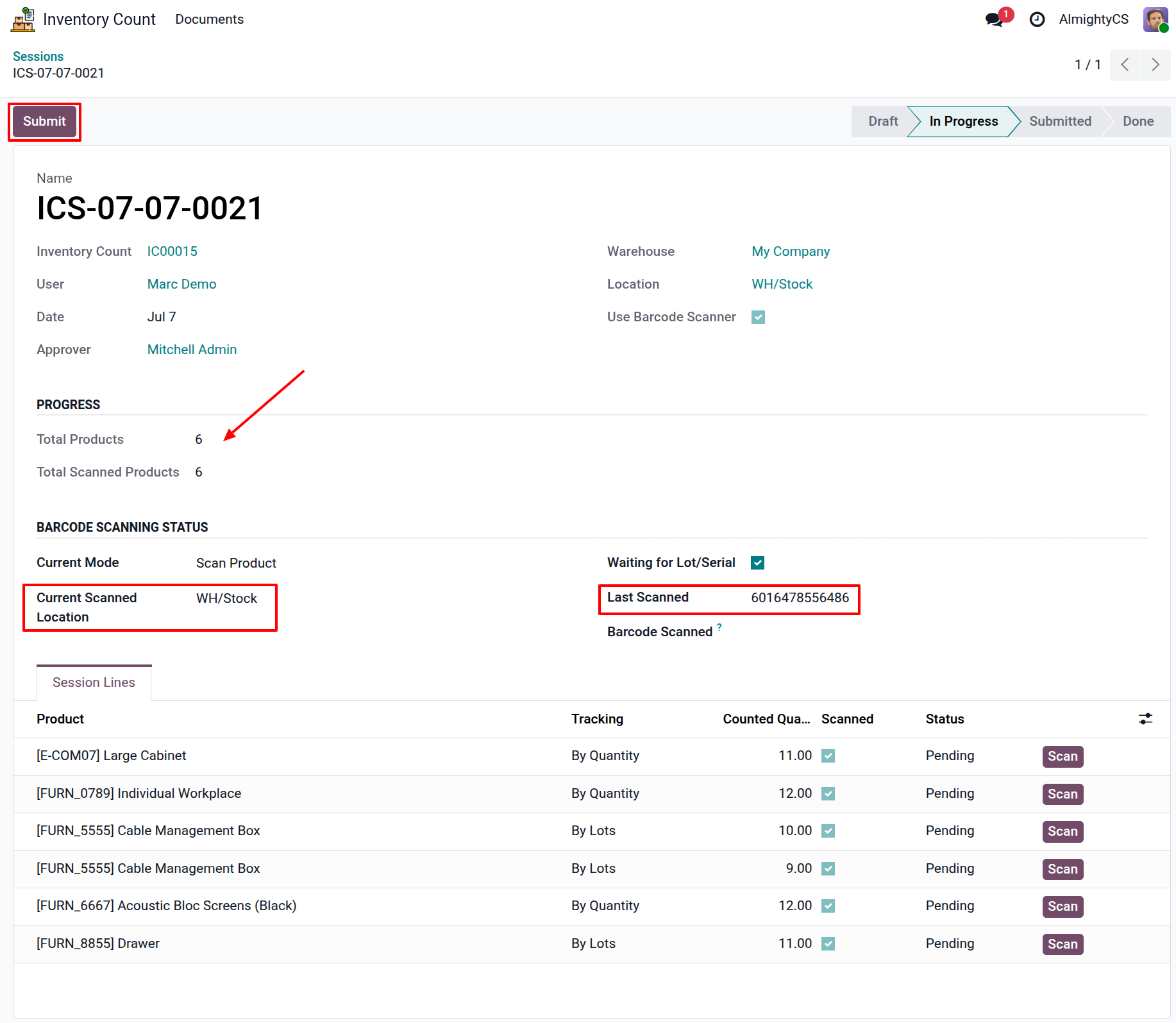
Submit Completed Session
Once all products are counted, users submit the session for managerial review before inventory adjustments are created.
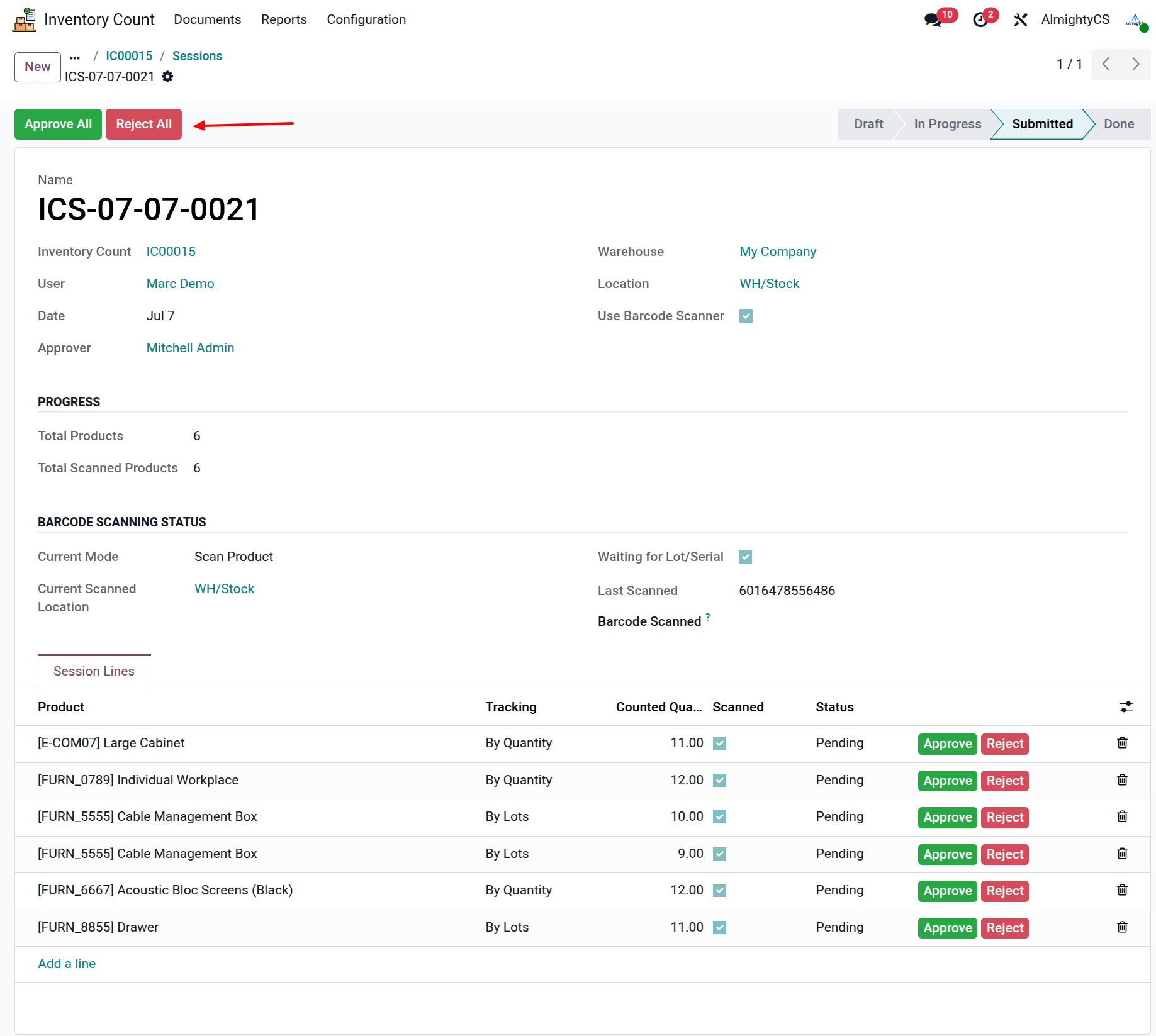
Review & Approval Workflow
Managers review every counted line, approve or reject discrepancies, and finalize the inventory count before generating adjustments.
Review Submitted Sessions
Inspect each counted product, compare theoretical vs counted quantities, verify serial numbers, and accept or reject lines as needed.
- Approve / Reject — Individual product lines based on the counted quantities.
- Approve All — Quickly approve all scanned lines at once if everything is correct.
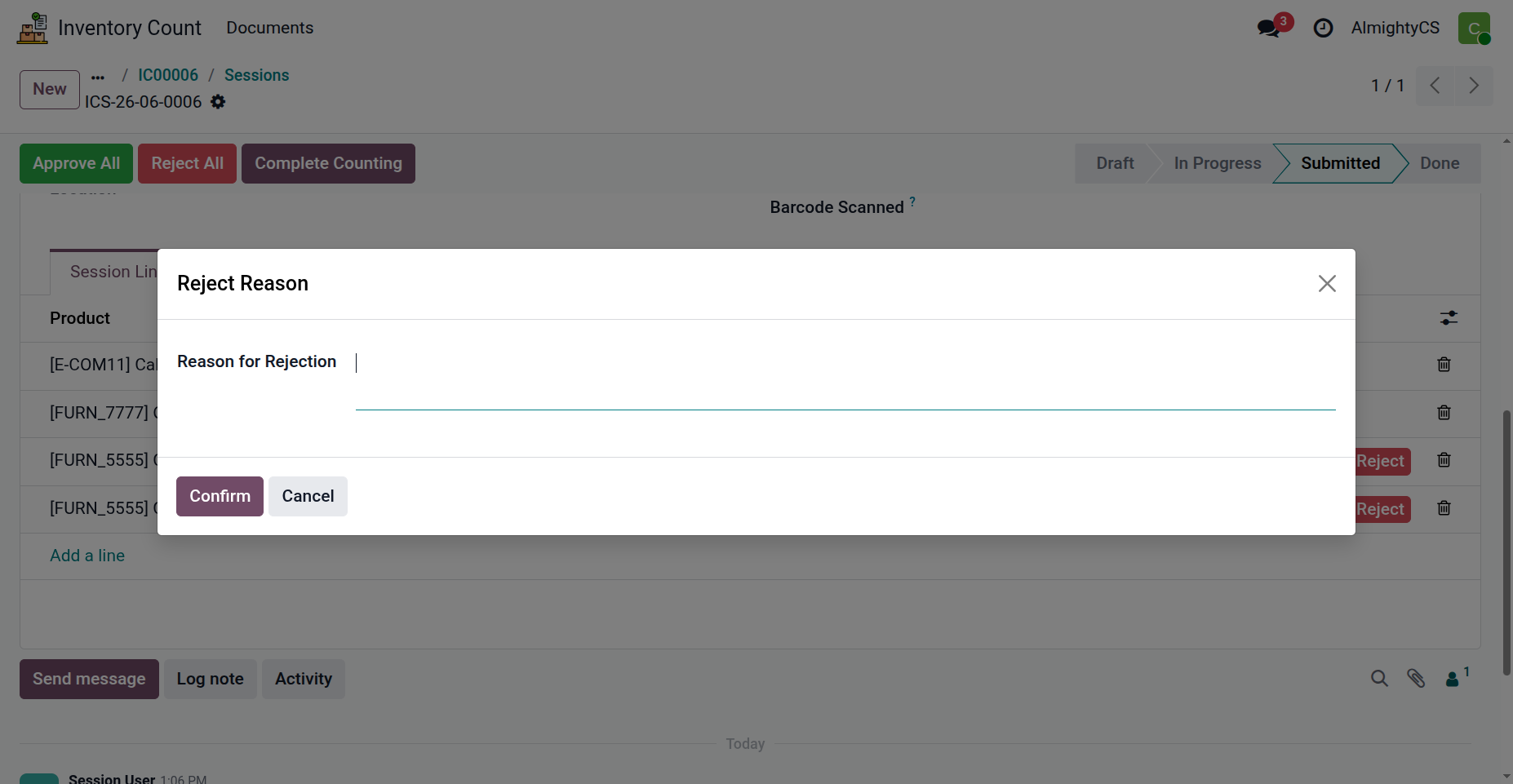
- Reject All — Reject all scanned lines if recounting is required.
Reject Incorrect Lines
Reject only the affected lines instead of the entire session. Users are notified and can recount the rejected items, reducing unnecessary work.
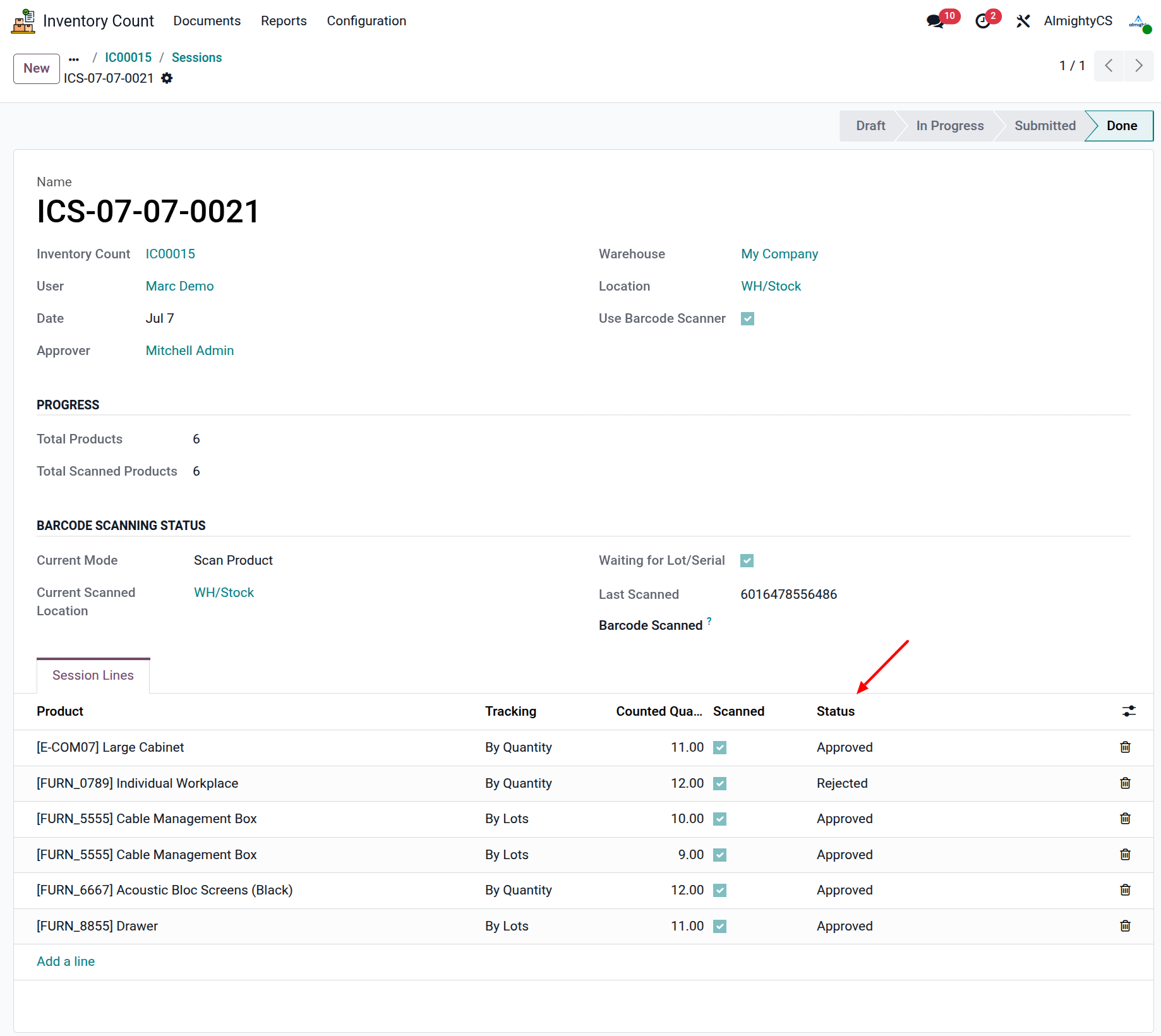
Complete Inventory Count
After all sessions lines are reviewed and Approved/Rejected, the session will automatically move to the Done state. The system is ready to generate adjustments reflecting verified physical stock.
Inventory Count Review & Adjustment
After all counting sessions are completed, the Inventory Manager reviews the inventory count and can approve or reject it, then apply the inventory adjustment.
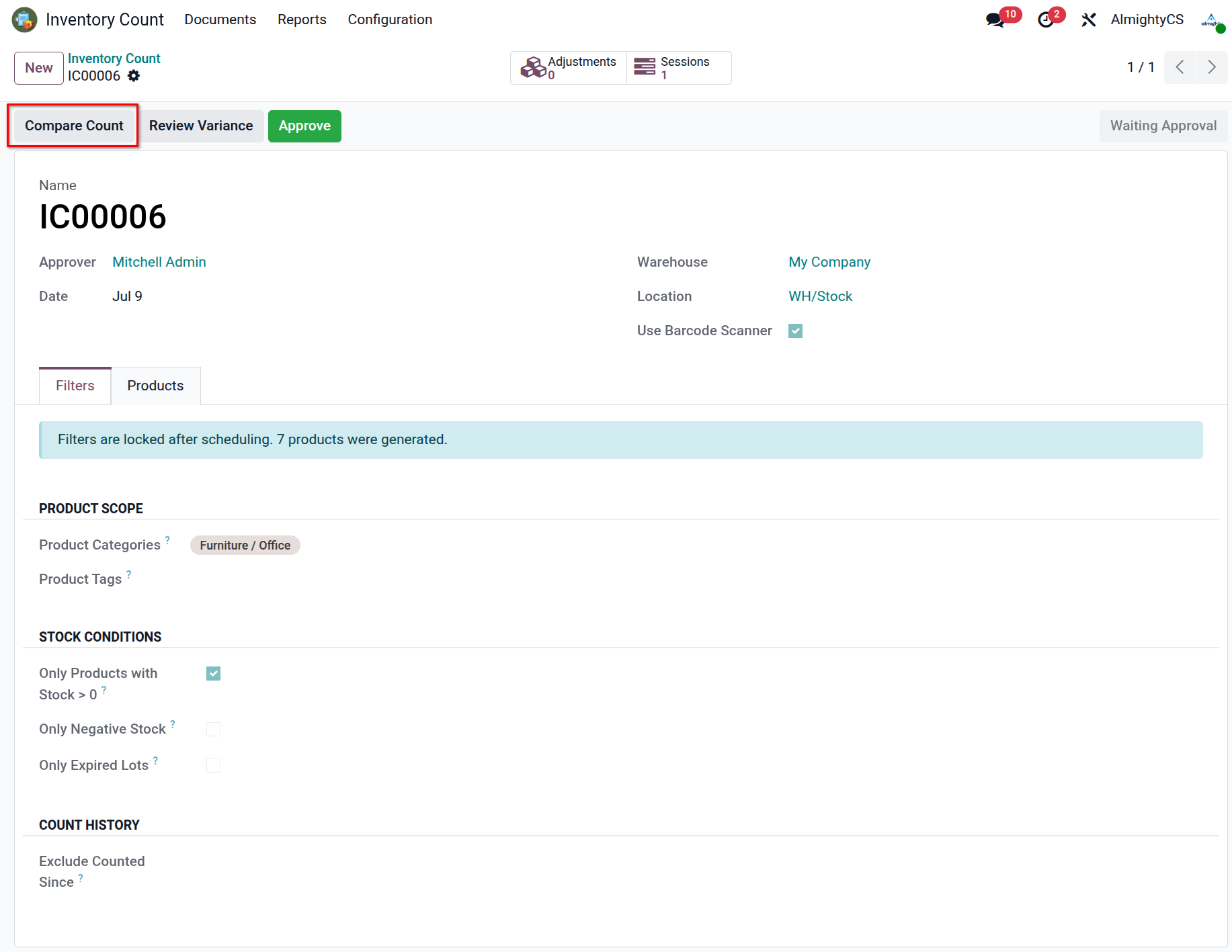
Compare Count
Use the Compare Count action to compare submitted session results before final approval. This helps managers identify matched quantities, small differences, high variance lines, and conflicts between counters.
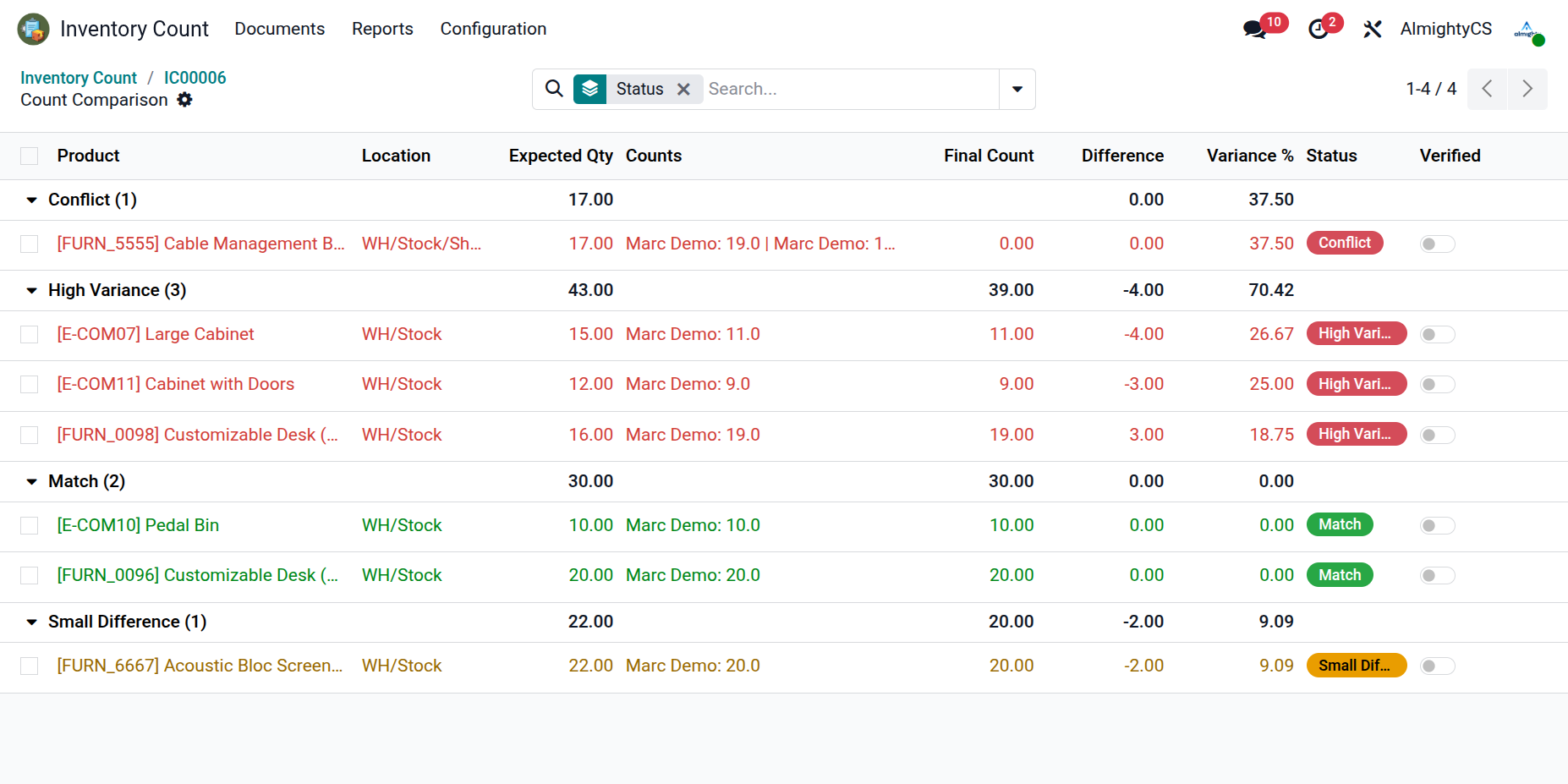
Compare Count List View
The comparison list groups counted products by their result status so managers can focus on the lines that need attention first.
- Conflicts — Different users counted the same product with different quantities, so a manager decision or recount is required.
- High Variance — The counted quantity is significantly different from the expected quantity and should be reviewed carefully.
- Small Difference — A minor quantity difference is detected and can usually be accepted after quick verification.
- Match — Counted quantity matches the expected quantity and is ready to move forward.
Resolve Count Conflicts
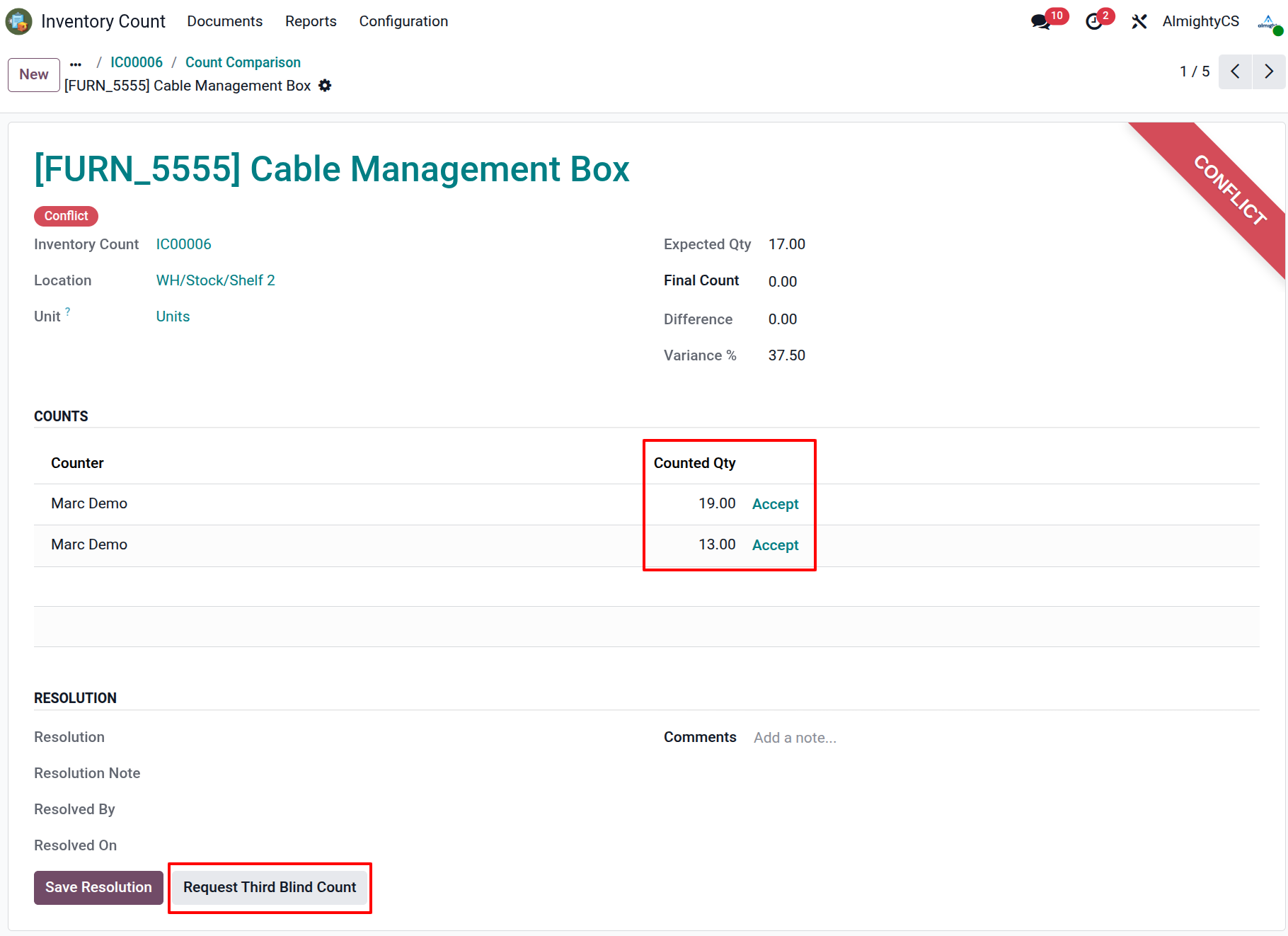
When a conflict is found, the manager can compare each user submitted count for the product and decide how to proceed.
- Select a submitted count — Choose the product quantity from one of the completed counting sessions when the manager can confirm it is correct.
- Request third blind count — Send the item for another independent blind count when neither submitted count can be confidently accepted.
Review High Variance Lines
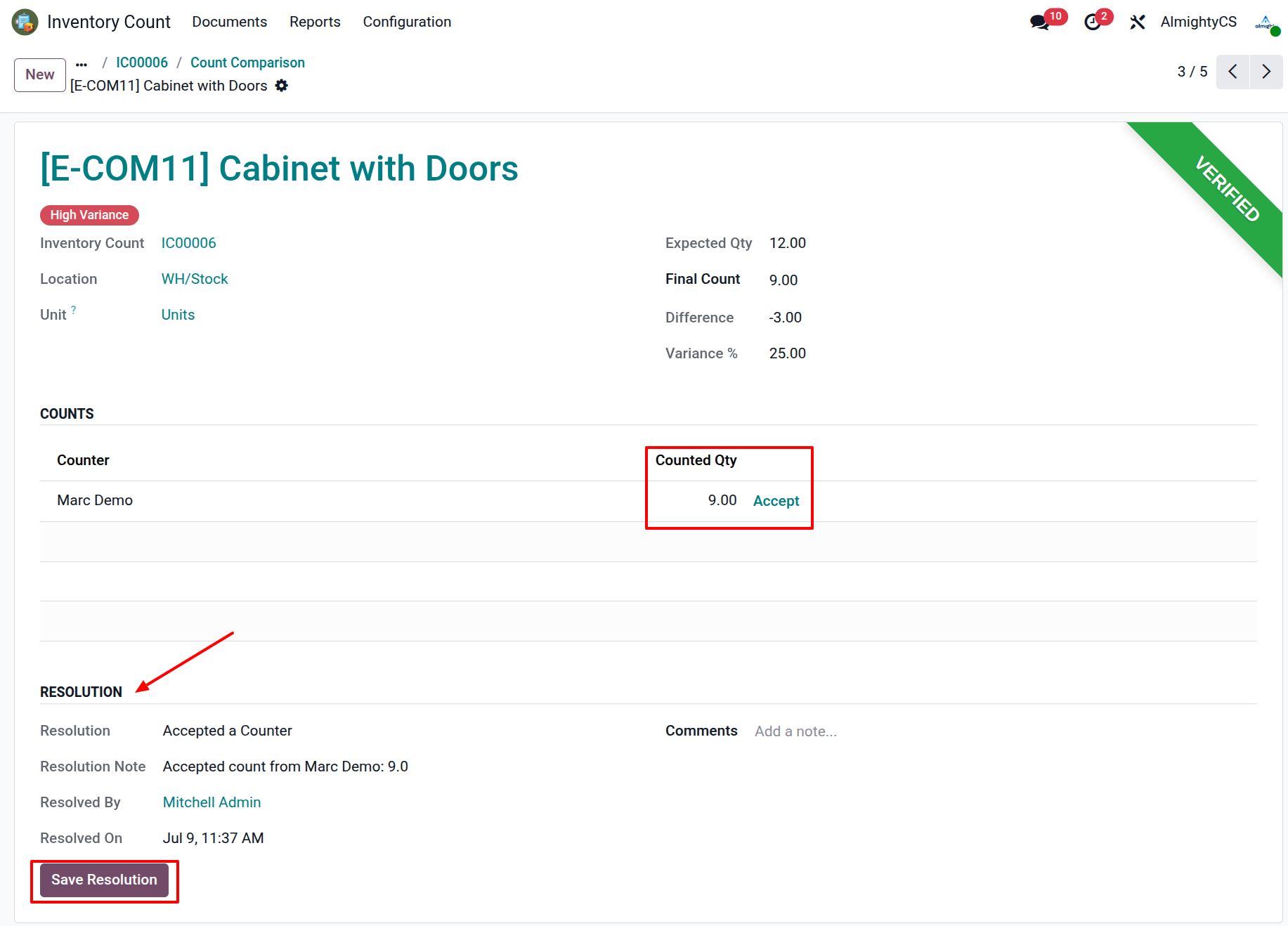
High variance lines highlight products where the counted stock differs strongly from the expected system quantity. Managers can inspect these items separately before approving the inventory count.
Review Variance
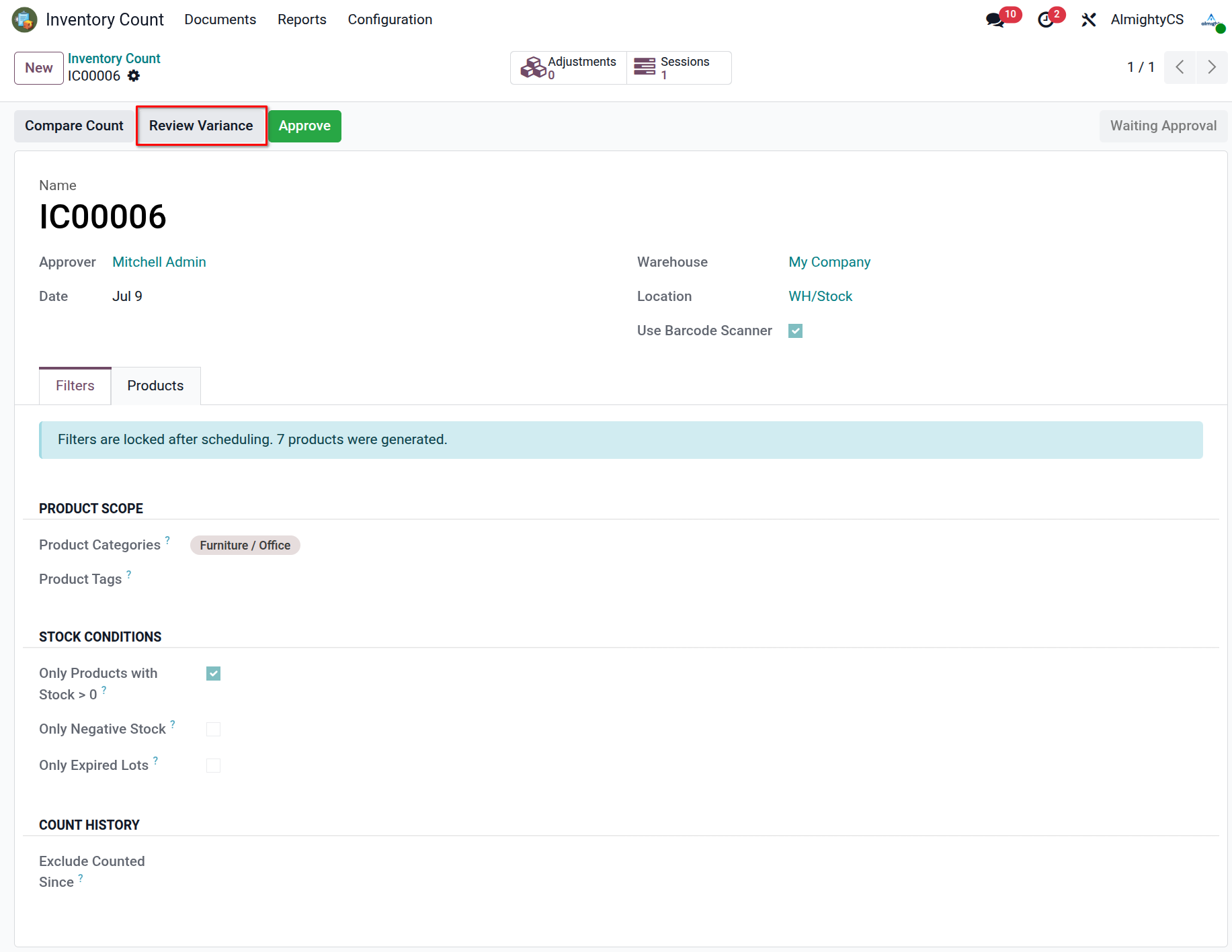
After comparing counts, use Review Variance to open a dedicated variance review area. This keeps discrepancy validation separate from the final approval step.
Review Variance List View
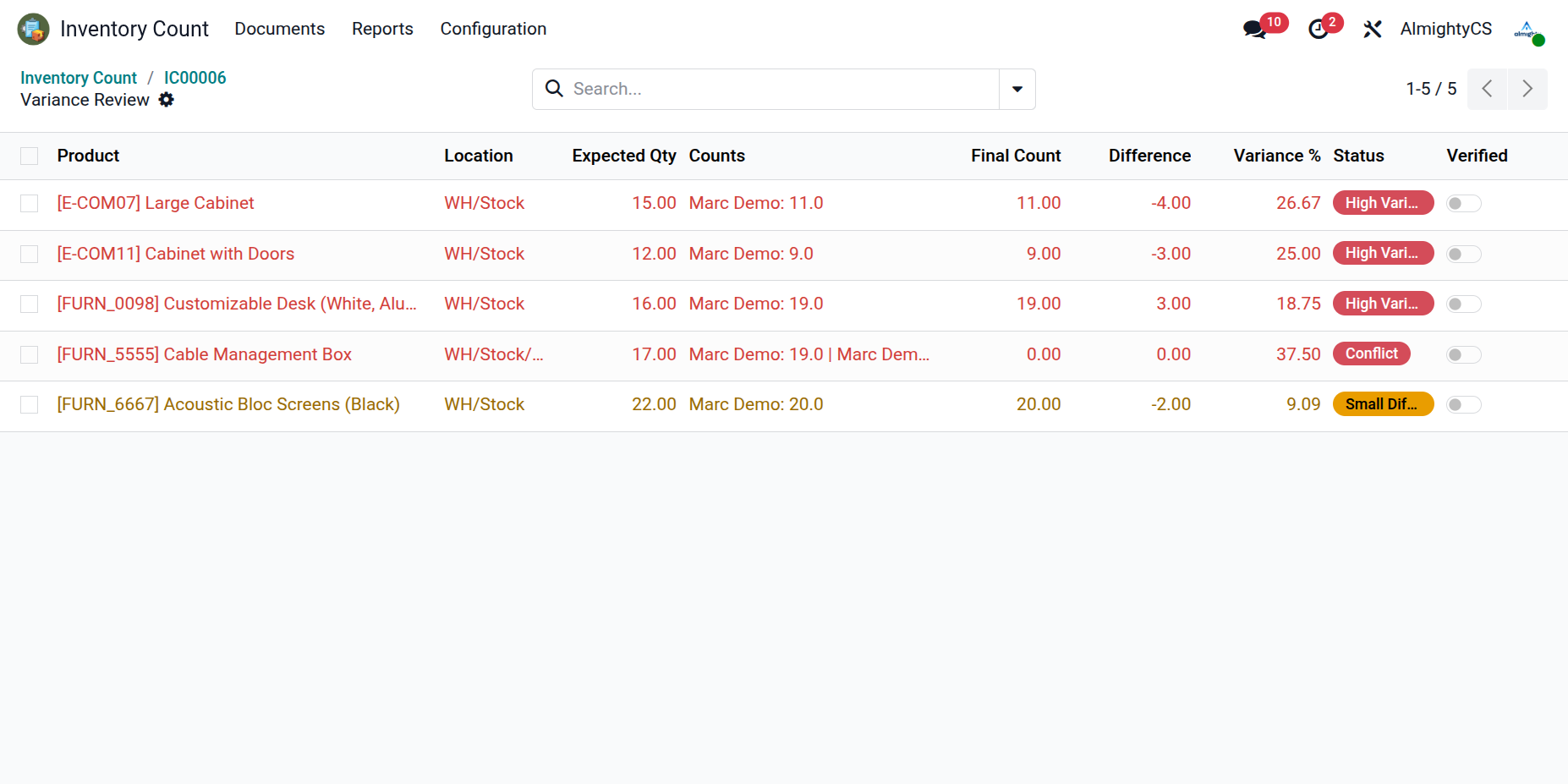
The variance list gives managers a clear view of products that still require validation before the inventory count can be approved and adjusted.
Review & Approve Inventory Count
Review the completed inventory count, verify counted quantities, and approve the inventory once all discrepancies have been validated. If required, the inventory count can still be rejected for further corrections before proceeding.
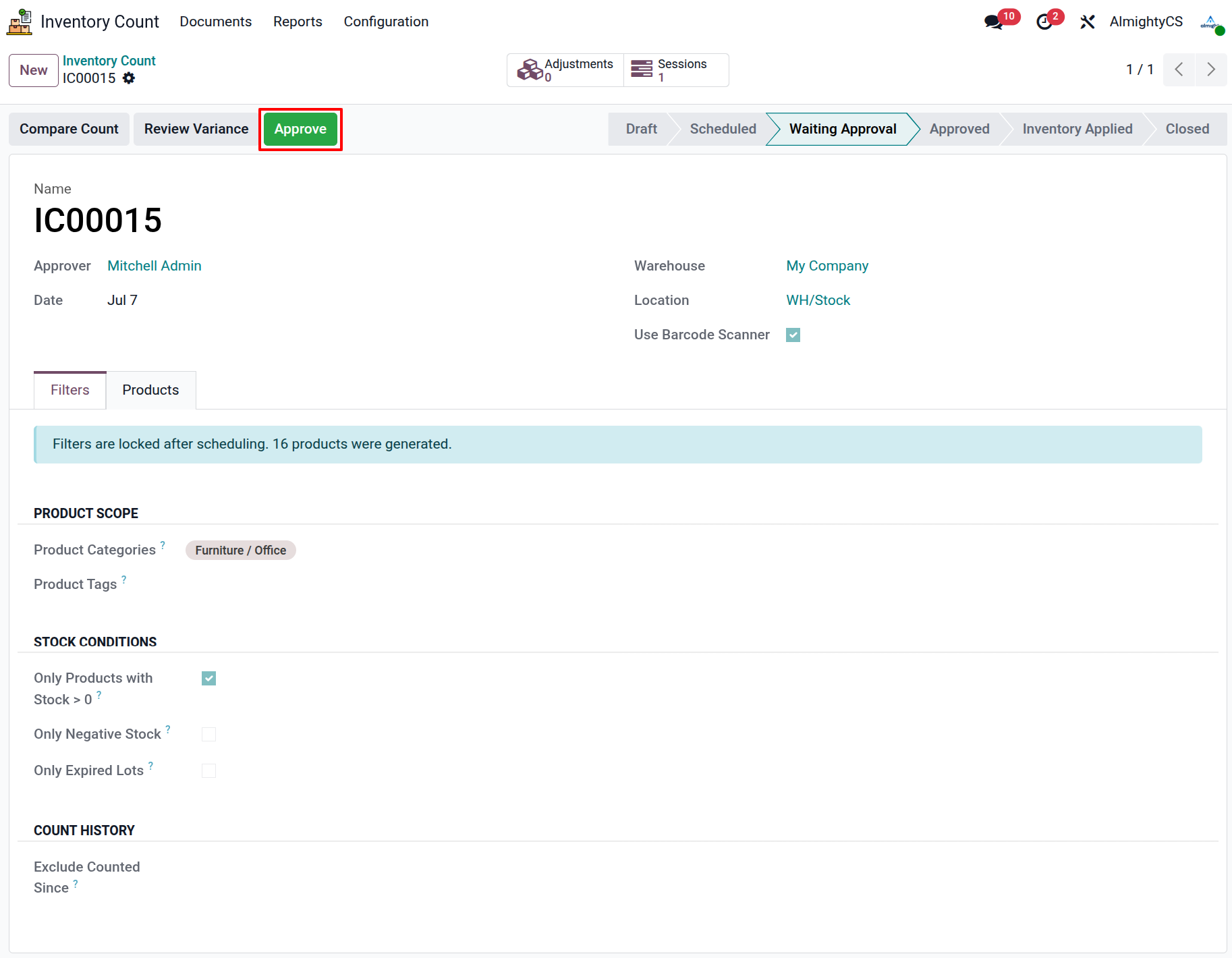
Generate Inventory Adjustment
Once the inventory count is approved, click the Generate Inventory Adjustment button to generate an inventory adjustment containing the differences identified during the physical count.
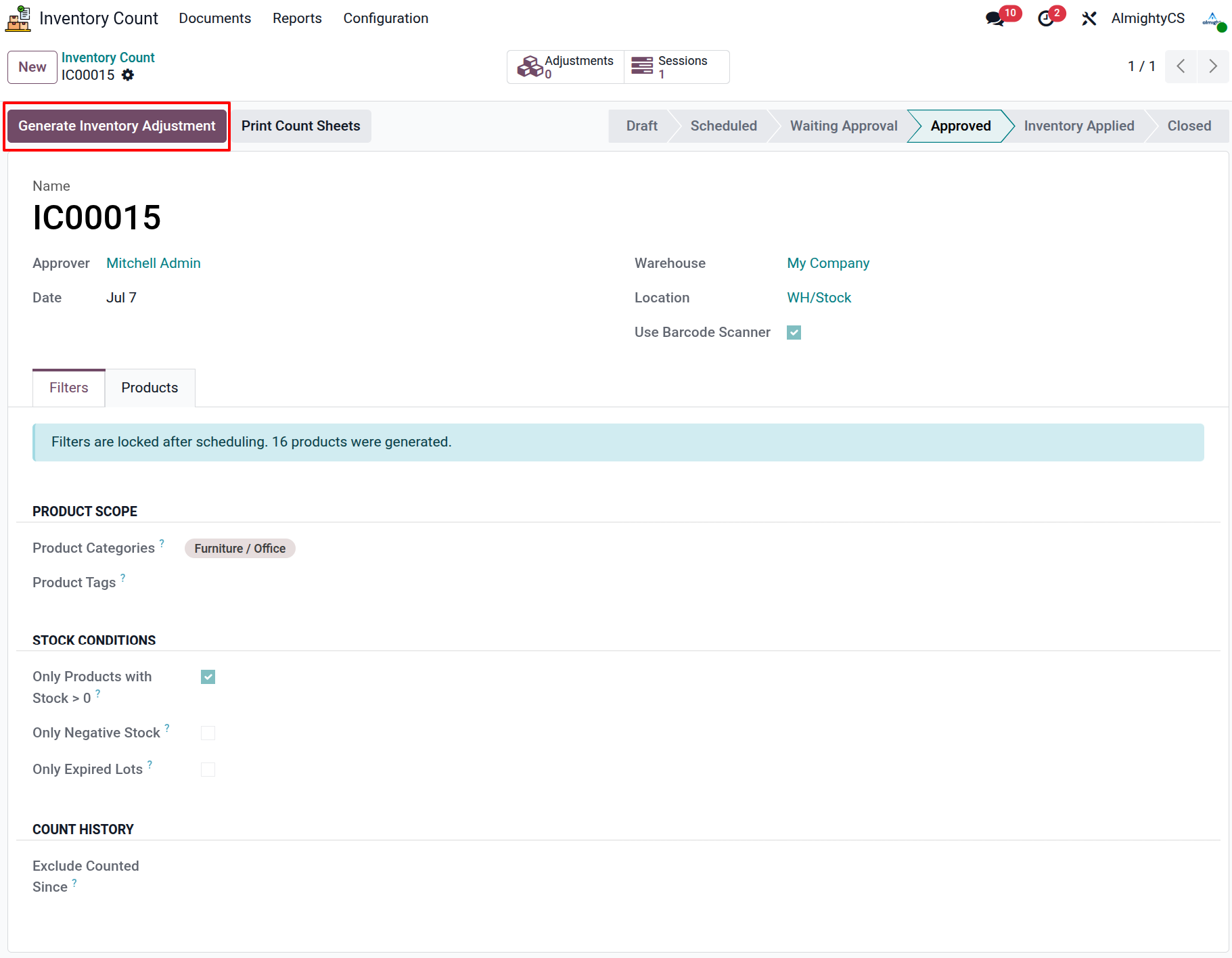
Validate Inventory Adjustment
Validate the generated inventory adjustment to automatically synchronize the system inventory with the physically counted quantities, ensuring accurate stock levels across the warehouse.
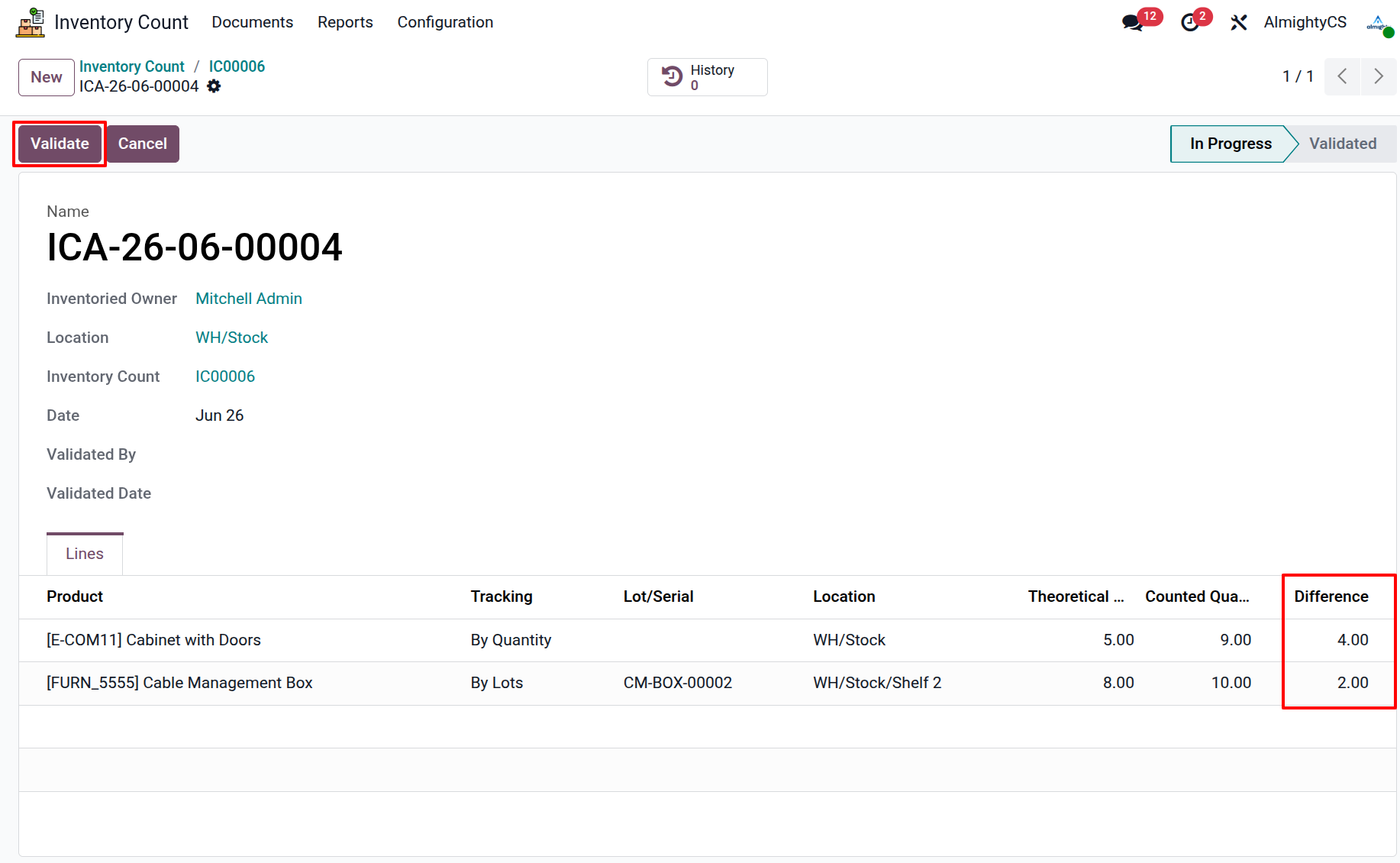
Comprehensive Reports
Gain valuable insights into inventory counting performance through multiple analytical reports designed for warehouse managers.
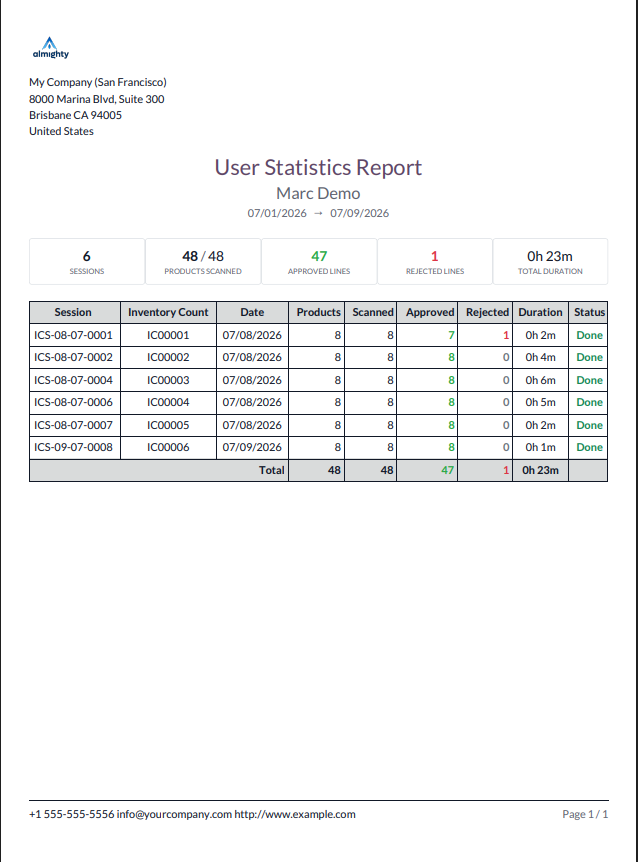
User Statistics Report
This report helps managers evaluate counting productivity by user. It summarizes assigned sessions, scanned products, counted quantities, and time spent during counting.
- Compare performance across warehouse users.
- Identify users who need support or additional training.
- Review session duration and scanning activity for audit tracking.
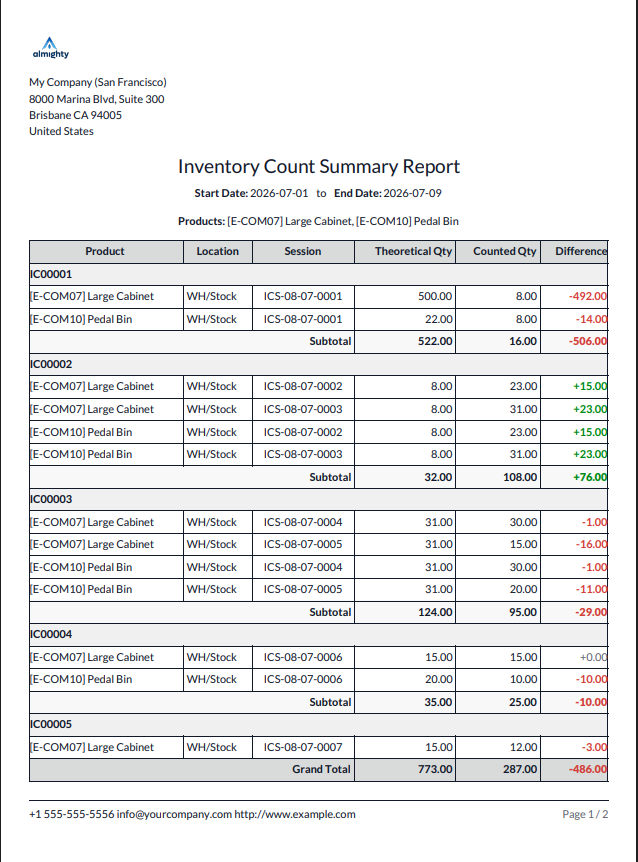
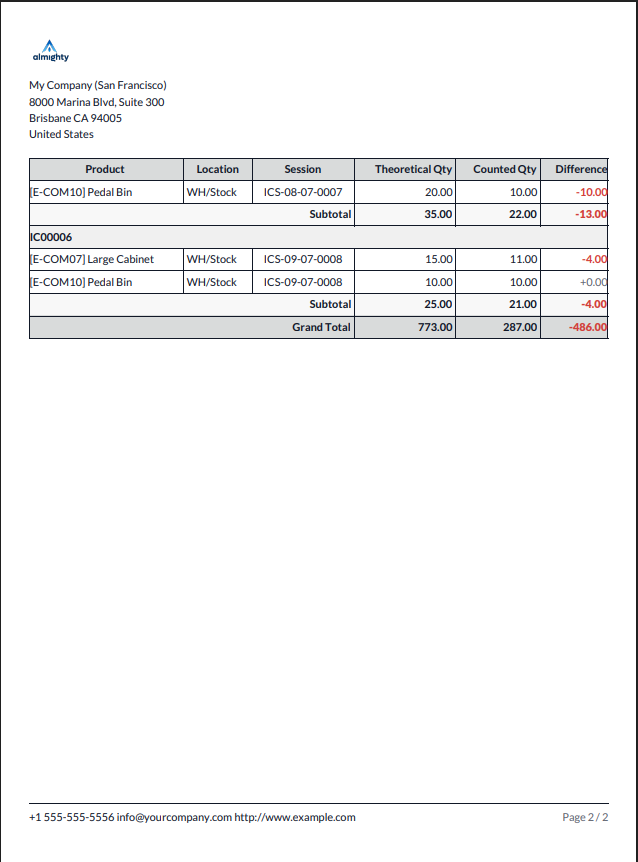
Inventory Count Summary Report
The summary report compares theoretical stock with physically counted stock so managers can review quantity accuracy before applying inventory adjustments.
- View expected quantity, counted quantity, and difference in one place.
- Analyze product-level discrepancies for audit review.
- Use the summary as a final validation document before adjustment.
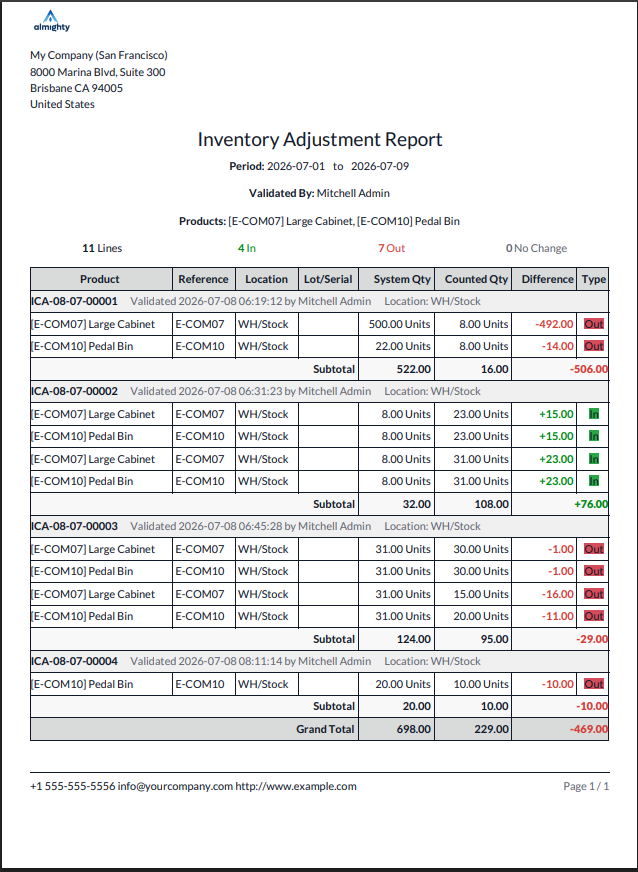
Adjustment Report
The adjustment report documents stock changes generated after approval. It gives managers a traceable record of every inventory correction applied to the warehouse.
- Track adjustment quantities created from verified count differences.
- Review product, location, and stock movement impact.
- Maintain a clear audit trail after inventory validation.
Email Notifications
Automatic email notifications keep every participant informed throughout the inventory counting lifecycle, ensuring timely actions and improved collaboration.
- Session Assignment – Notify assigned users when a new counting session is created.
- Session Submitted – Inform reviewers when a session is ready for validation.
- Rejected Lines – Notify users about rejected inventory lines requiring recount.
- Inventory Completed – Inform managers when all sessions have been successfully completed.
- Adjustment Created – Notify stakeholders after inventory adjustments are generated.
Configuration & Customization
Designed for Odoo ease-of-use — this module requires zero technical knowledge to deploy. Simply install and your team can start creating inventory planners, assigning count sessions, scanning products with barcodes, and generating inventory adjustments immediately. Our dedicated technical team is available for advanced customization to match your specific warehouse workflows, counting strategies, and reporting requirements.